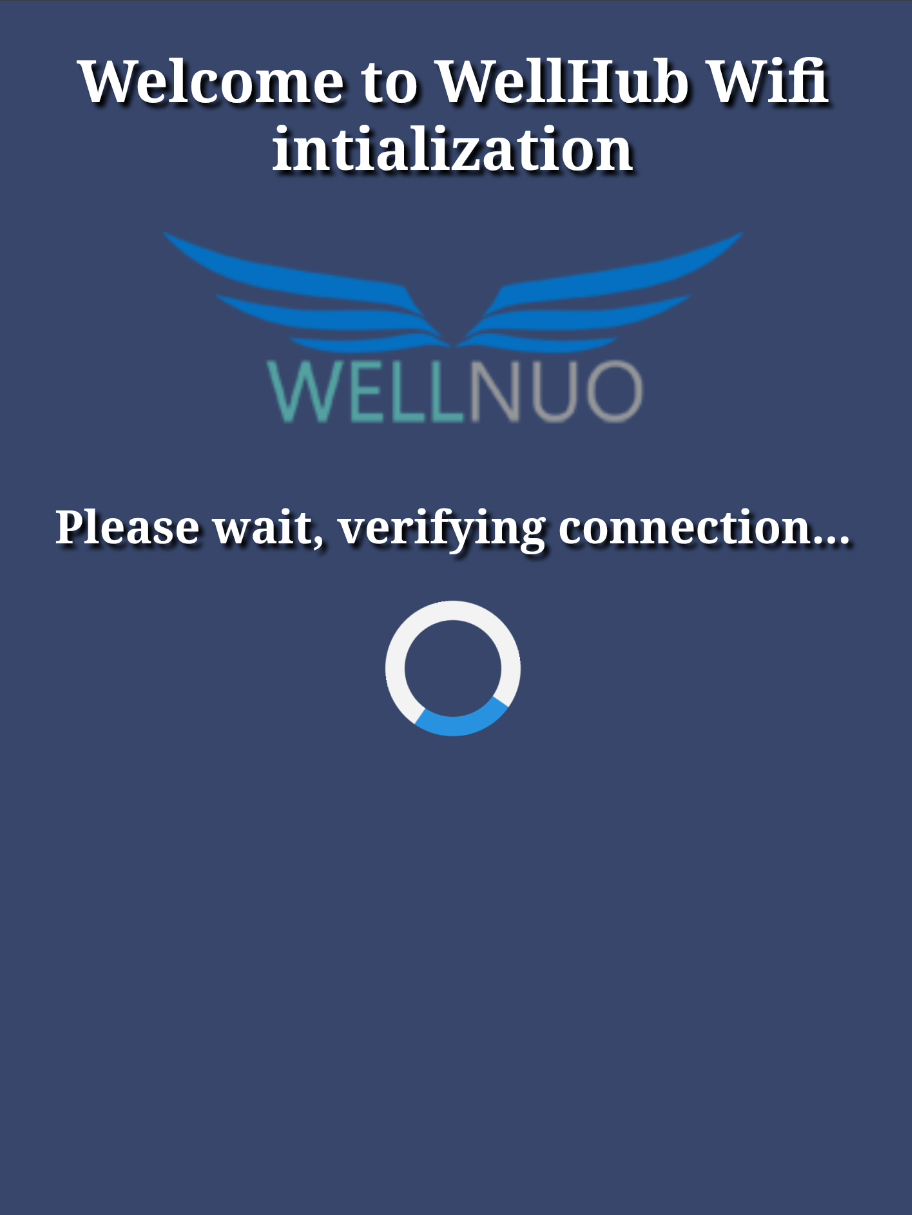
¶ Connecting to WiFi
To ensure the WellNuo Cloud can effectively access and process data sent by device, a stable Wi-Fi connection is required.
Ensure Power Supply:
First, make sure your WellNuo device is plugged in and powered on.
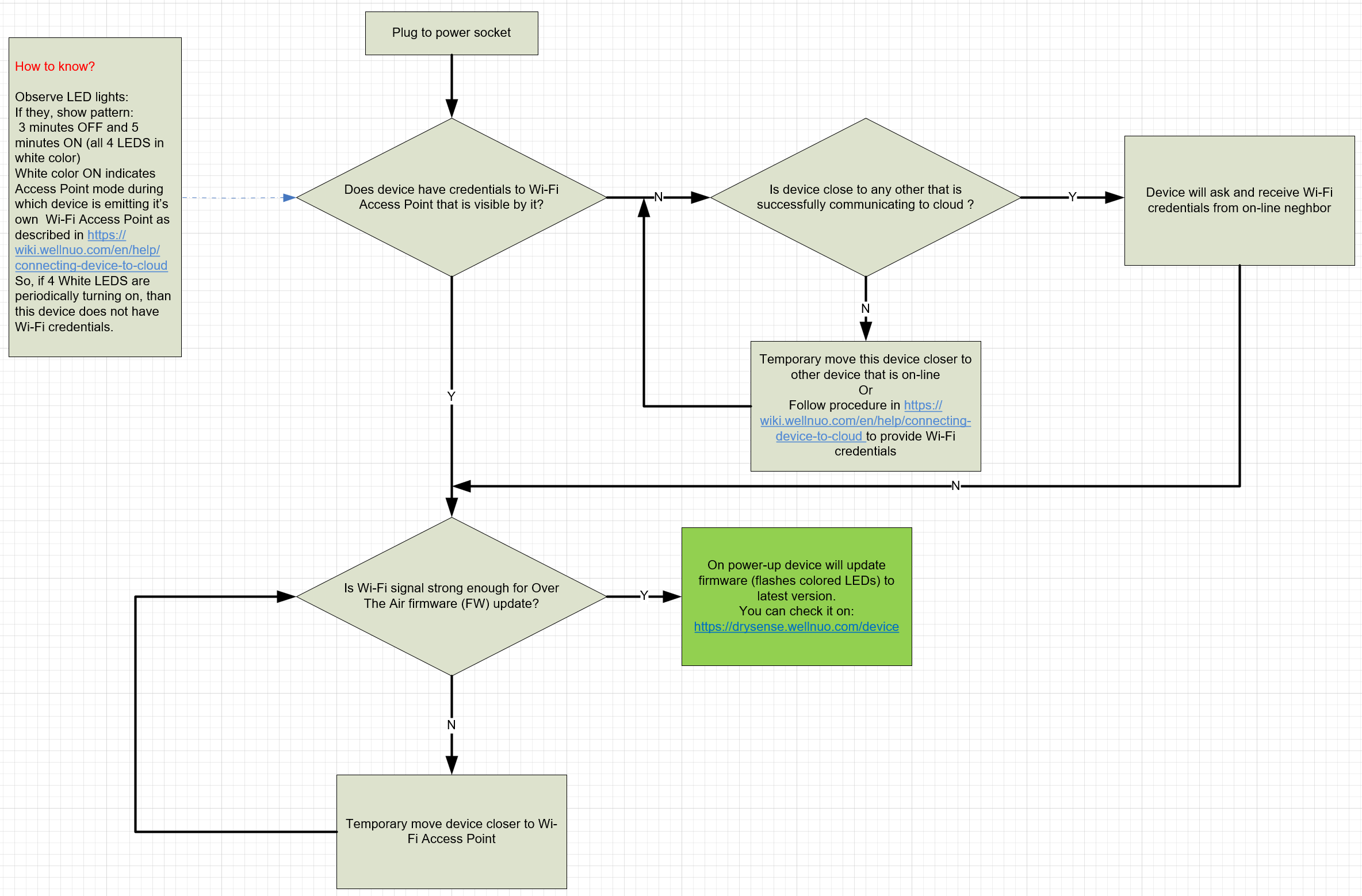
Access Your Device's Network Settings:
On your mobile device, navigate to the Settings menu and open the Wi-Fi or Network section.
Select the WellNuo Network:
From the list of available Wi-Fi networks, locate the one named: "WP_AAAA_XXXX". Enter the password "12345678" when prompted.
Note: AAAA is device id, and the last four characters (XXXX) are last for digit of device MAC address and they all should match what is printed next to the QR code on your WellNuo device.
Connect and Initialize:
After selecting the Wellplug network, you’ll be automatically redirected to the WellPlug WiFi Setup page.
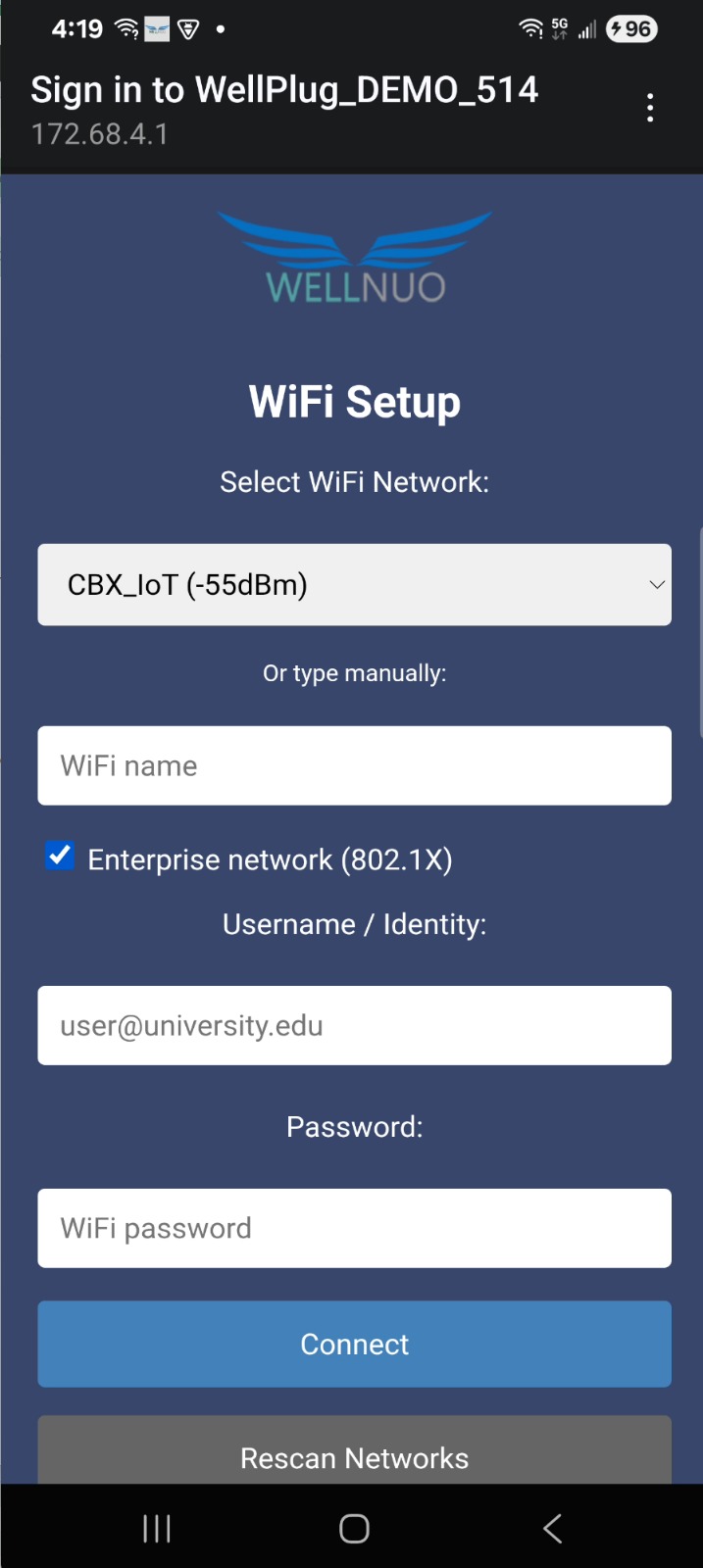
Choose Your Home Wi-Fi Network:
On this page, you’ll see a list of available Wi-Fi networks (SSIDs). Tap your desired network, and it will auto-fill the "Your WiFi" field below. Enter the password for your selected WiFi in the field below.
Wait for Connection Confirmation:
Once submitted, the system will begin connecting your device. Please be patient—the display will inform you once the setup is complete and the device is ready for use.