¶ WellPlug Setup
This guide walks you through setting up your WellPlug sensors and connecting them to your WiFi network.
Evaluating WellNuo with your first WellPlug? Start with Evaluating WellNuo.
¶ Install the App
- Android: the WellNuo app is not in the Google Play Store. Download and install it from https://wellnua.com/FW/WellNuoApp.apk. Open the link on your Android phone, download the file, and open it. Android asks you to allow installing apps from your browser ("Install unknown apps"); allow it for this install.
- iPhone: the WellNuo iPhone app is not yet generally available in the Apple App Store. Access can be requested from your WellNuo representative. Until then, use the web app at app.wellnuo.com in your browser.
¶ Step 1: Order Equipment
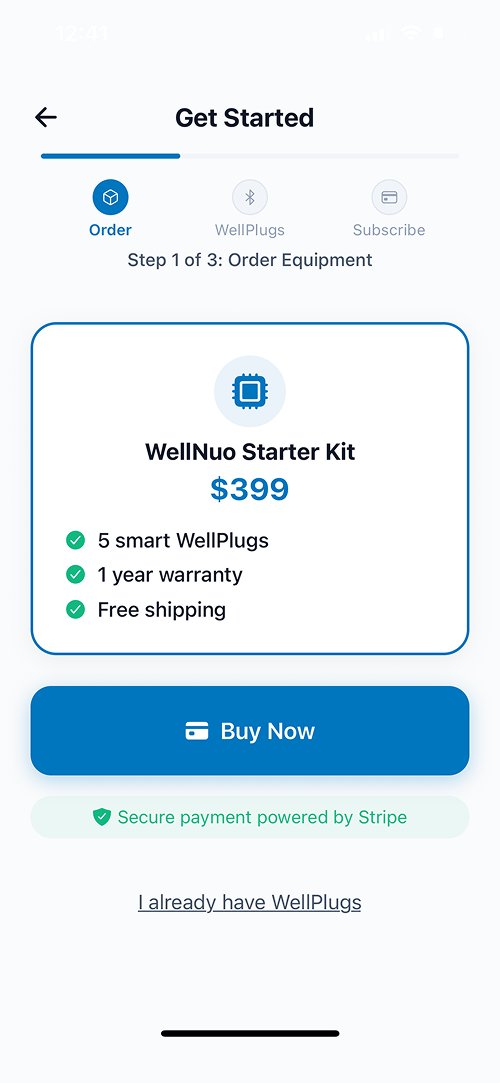
Start by ordering the WellNuo Starter Kit.
¶ What's Included
- 5 Smart WellPlugs: Motion and environmental sensors. Each plugs into a wall outlet and connects directly to your home WiFi - no hub needed
- 1 Year Warranty: Full coverage for hardware issues
- Free Shipping: Delivered to your door
Price: $399 (one-time purchase)
¶ Step 2: Setup WellPlugs
Important Placement Guidelines: Each WellPlug sensor has a detection range of 5 meters with a 120° field of view (±60°). For optimal monitoring, position the bedroom sensor with a clear line of sight to the bed. Place the kitchen sensor where it can detect meal preparation and cooking activities. Additional sensors should be strategically positioned to provide coverage of areas where the beneficiary spends the majority of their time throughout the day.
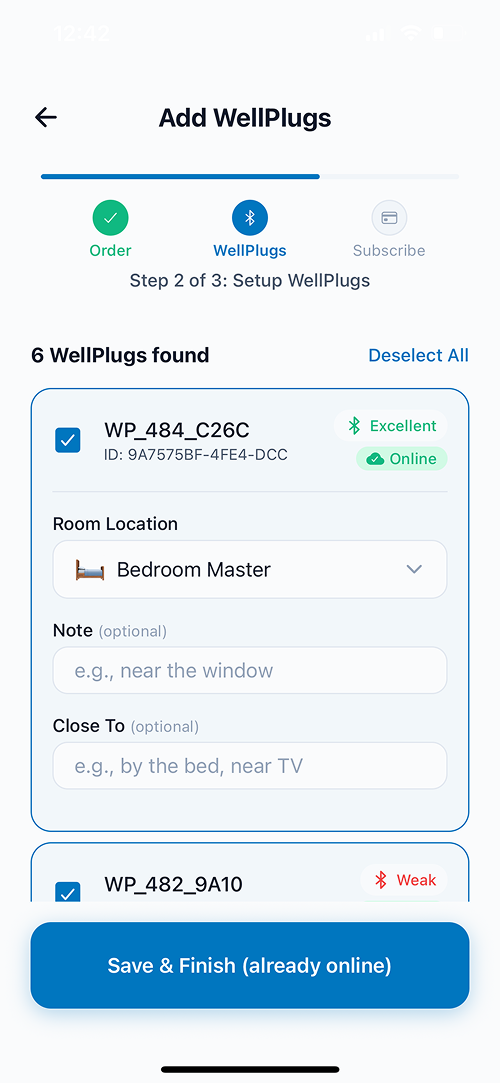
Once your equipment arrives, the app will guide you through pairing each WellPlug.
¶ Pairing Process
Important: Make sure Bluetooth is enabled on your mobile device before starting the pairing process.
- Plug in each WellPlug sensor
- The app will automatically detect nearby devices
- Assign each WellPlug to a room (Bedroom, Bathroom, Kitchen, etc.)
- Add optional comments (e.g., "on couch", "next to tree")
¶ Room Assignment
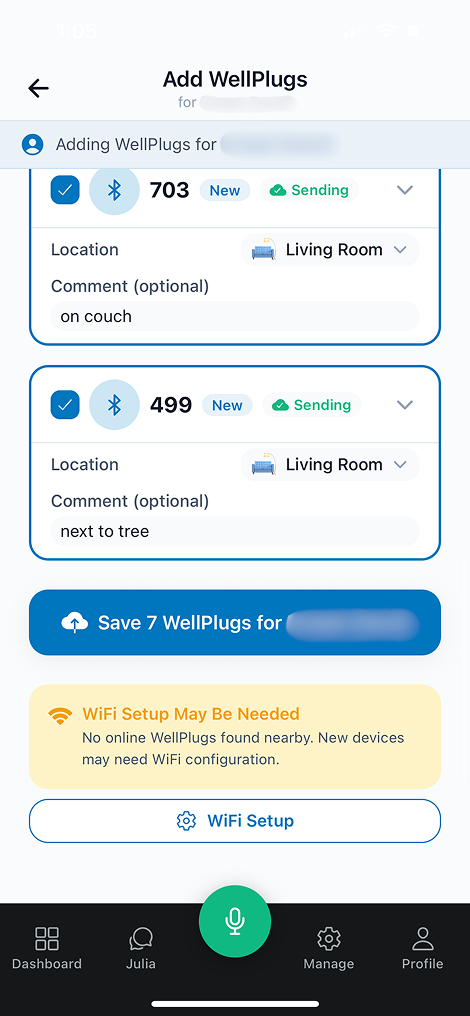
For each WellPlug, specify:
- Location: Select the room from the dropdown
- Comment: Optional description of placement
¶ Step 3: WiFi Configuration
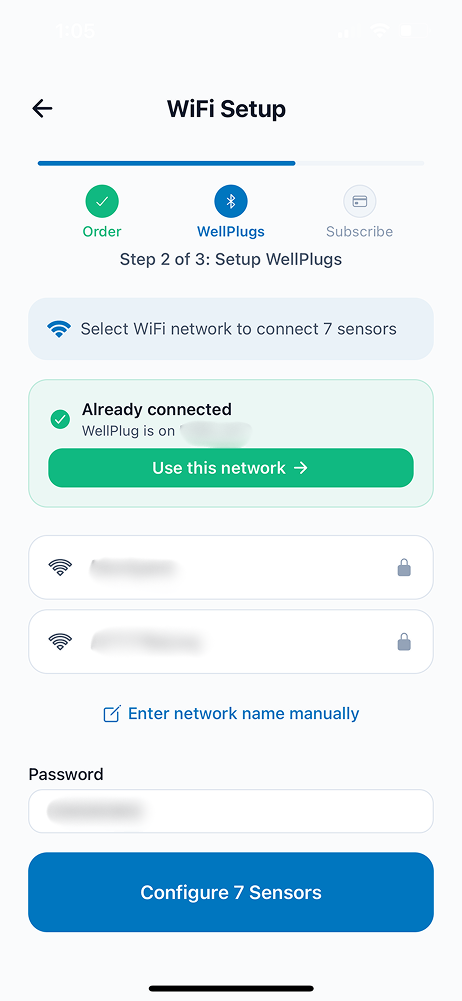
Connect your WellPlugs to your home WiFi network.
¶ Connection Options
- Use Existing Network: If WellPlugs are already on a network, tap "Use this network"
- Select Network: Choose from available WiFi networks
- Manual Entry: Enter network name (SSID) manually
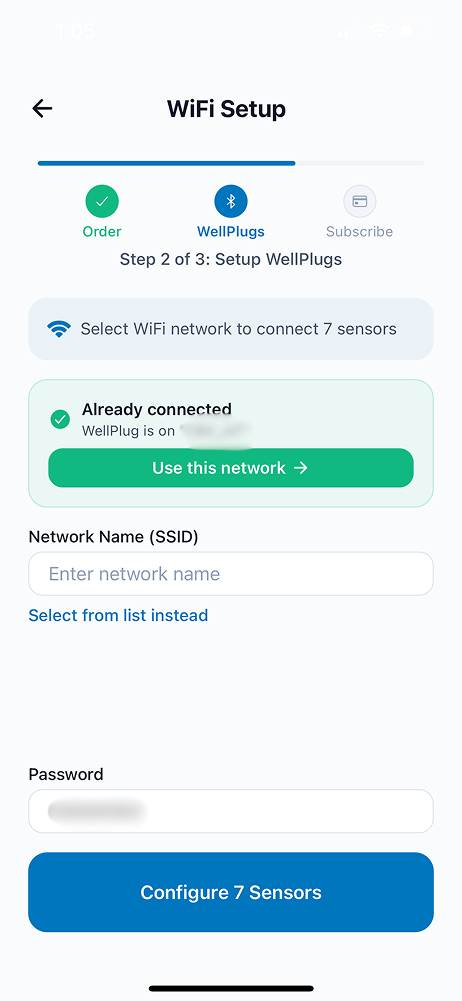
Enter your WiFi password and tap "Configure Sensors" to complete setup.
¶ WellPlug Settings
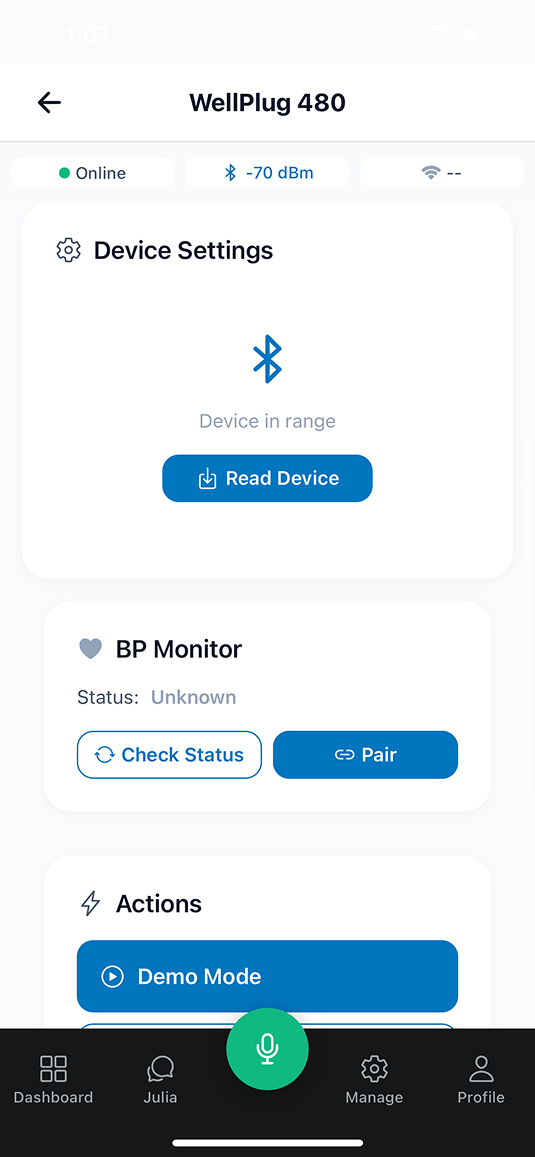
After setup, you can configure each WellPlug individually. To access this, select Manage (at the bottom of the screen) > select the beneficiary > select the device you want to configure.
¶ Device Information
- Status: Online/Offline indicator
- Signal Strength: Bluetooth connection quality (dBm)
- WiFi Network: Connected network name (on top of the screen)
¶ Available Actions
- Read Device: Sync latest data from the sensor
- BP Monitor: Pair blood pressure monitor (if applicable)
- Demo Mode: Show the device's live sensor values on its own Wi-Fi hotspot (see Demo Mode below)
¶ Demo Mode
Demo Mode turns a WellPlug into its own small Wi-Fi hotspot with a live sensor dashboard, so you can watch what the device senses, second by second. It uses real, live sensor readings.
¶ Turn on Demo Mode
- Turn on Bluetooth on your phone and stand near the device.
- Tap Manage (bottom bar), select the beneficiary, then select the device.
- Tap Demo Mode, then Start Demo. The device restarts in demo mode. (If the button is greyed out with "requires Bluetooth", move closer to the device.)
- On your phone or laptop, join the Wi-Fi network named WP_<device number>_<XXXX>, the same name that is printed next to the QR code on the device. Password: 12345678.
- Open http://172.68.4.1/demo in a browser.
¶ What you will see
- Radar: motion and presence, and distance to the person. Models with the tracking radar also show the positions of up to 3 people moving in front of the device.
- Temperature, humidity, air pressure and light level.
- Air quality (VOC). The "eCO2" value is an estimate calculated from VOC gases, not a measured CO2 level.
- Values refresh about 10 times per second.
¶ Turn off Demo Mode
Demo Mode has no time limit. To return to normal operation, open http://172.68.4.1/ and tap Reboot to Normal Mode, or unplug the device for a few seconds and plug it back in.
Important: while in Demo Mode the device does not send data to the WellNuo cloud and does not raise alarms. There will be a gap in its history for that time.
¶ Advanced Settings
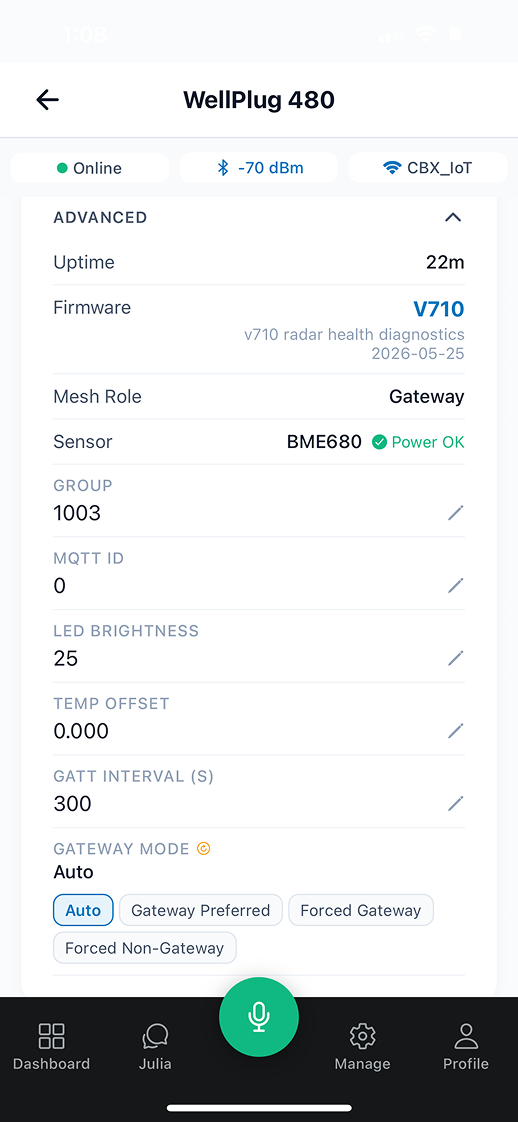
For technical users, advanced options are available by pressing the "Read device" button.
| Setting | Description |
|---|---|
| Uptime | How long the device has been running |
| Firmware | Current software version |
| Mesh Role | Gateway or Node |
| Sensor | Hardware sensor type (e.g., BME680) |
| LED Brightness | Adjust indicator light brightness |
| Temp Offset | Calibrate temperature readings |
| Gateway Mode | Auto, Gateway Preferred, Forced Gateway, Forced Non-Gateway |
¶ GPS Location
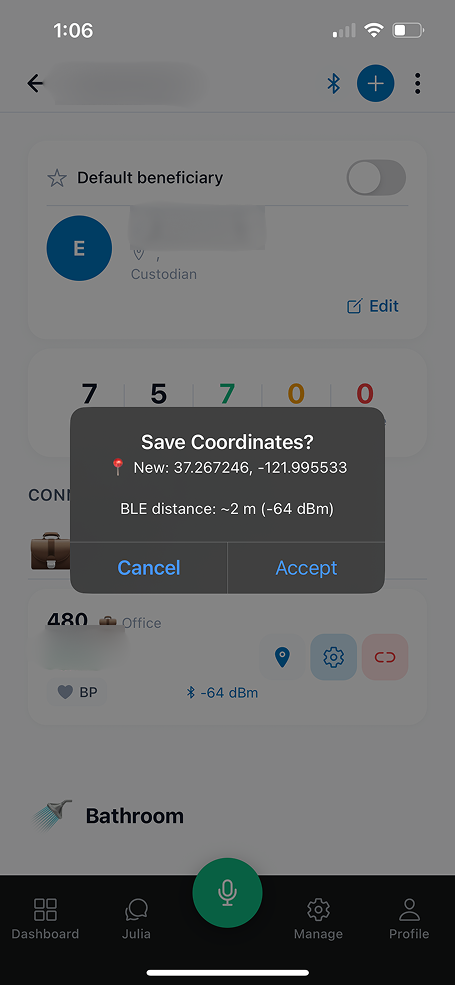
Save the physical location of your WellPlugs for accurate tracking by selecting the pinpoint icon button.
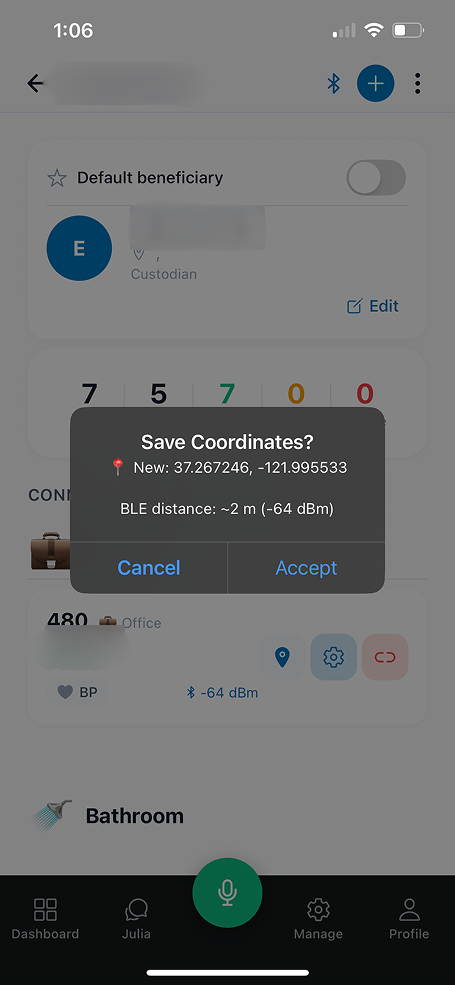
The app uses Bluetooth distance measurement to determine sensor proximity.
¶ Detaching a WellPlug
To remove a WellPlug from a beneficiary, tap the red link icon button on the right:
The WellPlug will become available to assign to another person.
Previous: Dashboard Overview | Next: Managing Beneficiaries